How to Use a LinkedIn Profile Viewer: Step-by-Step Guide with Screenshots
Paste a URL, get results in under 10 seconds — no account, no login, no trace in their viewer list.
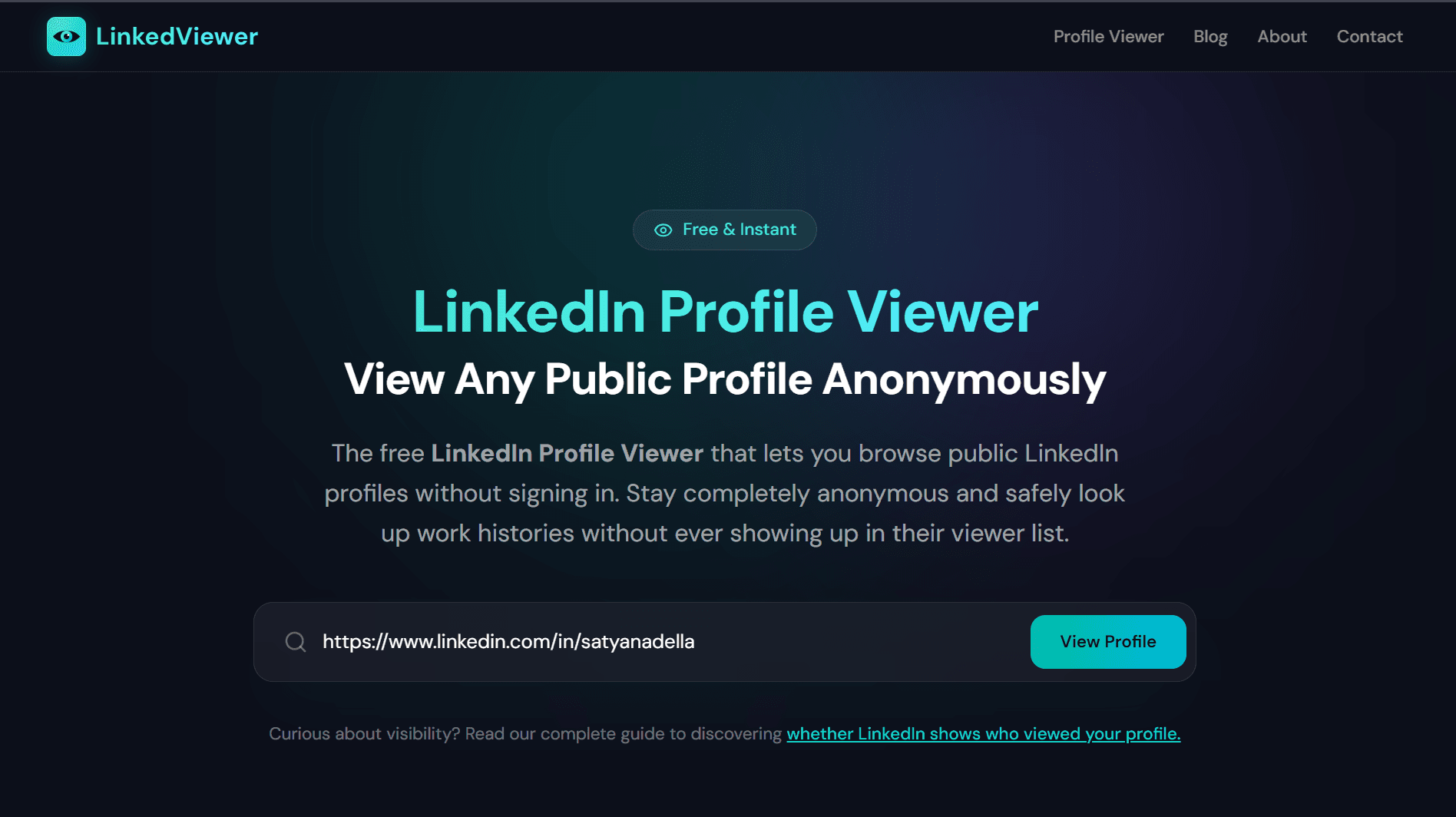
This is LinkedViewer — click to open it and look up any public profile free
Paste a URL, get the profile back in seconds — no account, no login, and nothing in the owner's "Who viewed your profile" list. A LinkedIn profile viewerfetches the public profile the same way a search engine crawler does, so there's no LinkedIn session tied to your lookup.
What you'll need
Just one thing: the LinkedIn profile URL of the person you want to look up. It follows the format linkedin.com/in/username.
You can find a LinkedIn URL in a few ways:
- Copy it directly from the browser address bar when viewing someone's LinkedIn page
- Check their email signature — most professionals include their LinkedIn URL there
- Search Google:
site:linkedin.com/in/ "First Last" Company - Find it in their bio on Twitter/X, a company website, or a conference speaker page
Step 1: Paste the URL into LinkedViewer
Go to linkedviewer.com and paste the LinkedIn URL into the search bar. Every common format works — https://www.linkedin.com/in/username, the shorter linkedin.com/in/username, or even just the username on its own.
Step 2: Click View Profile
Hit the teal View Profilebutton. Instead of a generic spinner, the tool shows live progress steps — Connecting, Loading, Extracting — so you can see exactly what's happening. Most lookups complete in 3–8 seconds.
Under the hood, the lookup works like this: LinkedViewer makes a single HTTP request to the profile's public URL — the same request a Google crawler makes. Because no LinkedIn account is involved, there is no member ID for LinkedIn to log, and your visit never appears in the profile owner's viewer dashboard.
Step 3: Read the results
Once the lookup completes, the full public profile appears below the search bar. Here's what a result looks like for a well-known public figure:
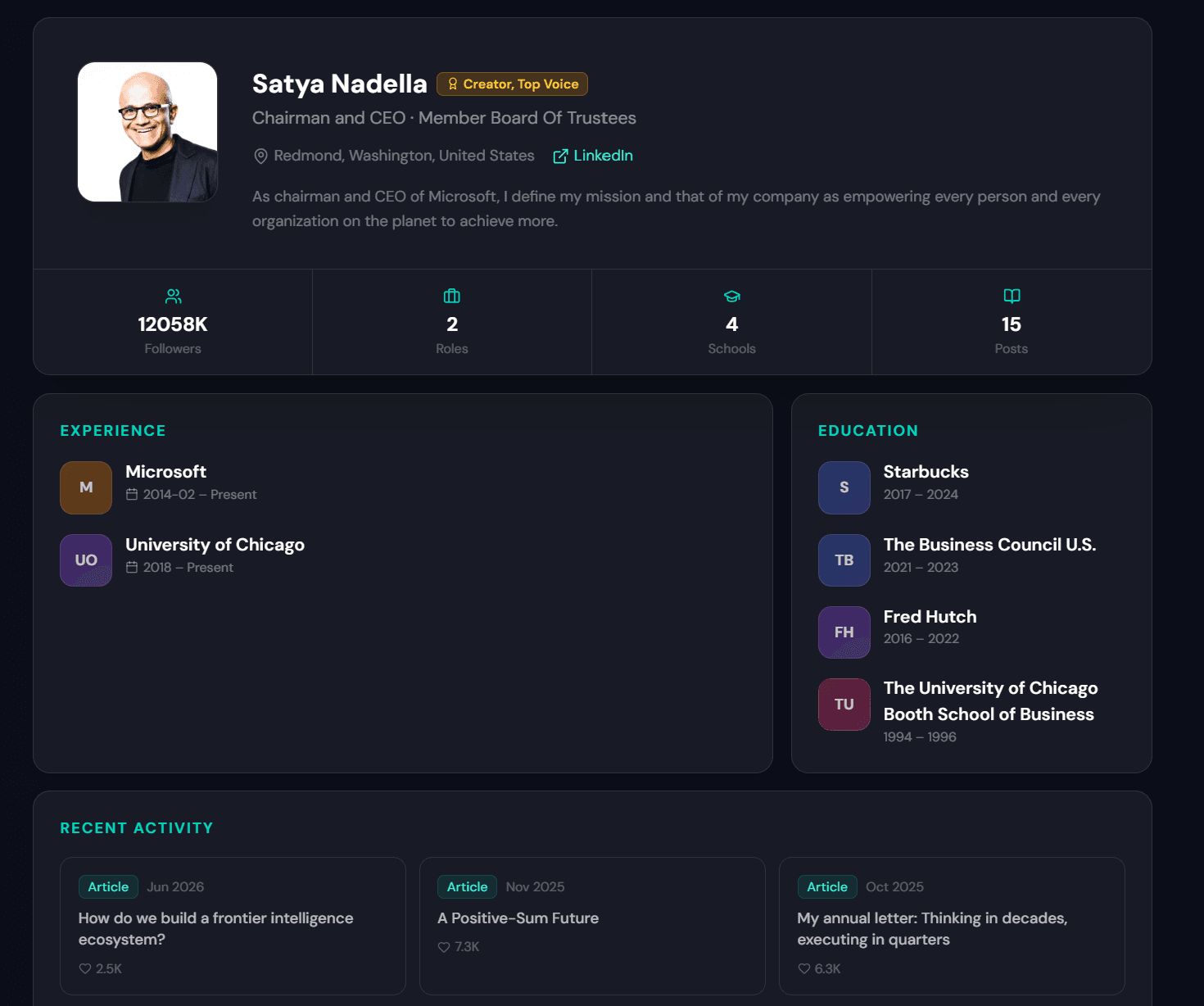
The full public profile — photo, headline, experience, education, and stats — rendered cleanly
What the profile card shows you
The result layout is split into three sections:
Header card
- Profile photo — loaded via a privacy-safe proxy
- Full name and any LinkedIn badges (Creator, Top Voice, etc.)
- Professional headline — current job title and company
- Location at the city or region level
- About / bio if the profile owner has made it public
- Stats strip — followers, number of roles, schools, and recent posts
Experience & Education columns
The two-column layout shows work history on the left (company names and date ranges) and education on the right. Only entries the profile owner has made public appear — if they've restricted their experience section, you'll see what LinkedIn serves to any logged-out visitor.
Recent Activity
Up to six recent public posts and articles, each linking directly to the original LinkedIn post. Useful for seeing what someone has been writing about before a call or meeting.
What LinkedViewer cannot show
LinkedIn Profile Viewers are bound by what LinkedIn itself serves publicly. Things that require a logged-in LinkedIn session — and therefore will never appear — include:
- Contact info (phone, email, website) unless the user explicitly made it public
- Mutual connections
- Full Skills and Endorsements sections when restricted
- Private messages or InMail history
- Who has viewed the profile owner's page
- Any data on profiles set to non-public by the owner
If a profile owner has set their LinkedIn profile to private, even Google's crawler can't see it — and neither can LinkedViewer.
Common use cases
- Pre-interview research. Look up the hiring manager or interviewer before a call without them seeing you checked their profile the night before.
- Sales and recruiting. Review a prospect or candidate's background before outreach without burning a cold-contact signal.
- Competitive intelligence. Track a competitor's team growth or senior hires without your company name showing up in their viewer list.
- Reconnecting. Check an old colleague or classmate's current role before deciding whether to reach out.
- Verification. Confirm someone is who they say they are before a meeting, introduction, or transaction.
Frequently asked questions
- How do I use a LinkedIn profile viewer?
- Go to linkedviewer.com, paste any LinkedIn profile URL into the search bar (format: linkedin.com/in/username), and click View Profile. The tool fetches the publicly visible profile data and displays it — name, headline, experience, education, follower count, and recent posts — in a clean layout. No login required.
- Will the person know I viewed their LinkedIn profile with this tool?
- No. LinkedViewer fetches the publicly indexed version of a LinkedIn profile — the same data a search engine crawler sees. Because no LinkedIn session is created for your lookup, there is no identity for LinkedIn to log, and nothing appears in the profile owner's 'Who viewed your profile' section.
- What LinkedIn URL format do I need to use?
- The standard format is linkedin.com/in/username. You can copy it directly from the browser address bar when viewing someone's LinkedIn profile, or from their email signature / personal website. Both https://www.linkedin.com/in/username and http://linkedin.com/in/username work.
- What information does LinkedViewer show?
- LinkedViewer shows whatever LinkedIn makes publicly visible to logged-out visitors: full name, profile photo, professional headline, current and past job titles, companies and dates, education, location, follower and connection counts, and recent public posts. It does not show private data, contact info, or anything gated behind a LinkedIn login.
- How long does a LinkedIn profile lookup take?
- Most lookups complete in 3–8 seconds. The tool shows live progress steps (Connecting → Loading → Extracting) so you can see exactly what's happening rather than staring at a blank spinner. On rare occasions a proxy rotation adds a few extra seconds.
- Do I need to create an account or pay anything?
- No. LinkedViewer is completely free, with no account, no email, no sign-up, and no paywall. Every feature on the site is available to any visitor without any registration.
- Can I look up any LinkedIn profile?
- You can look up any profile that LinkedIn makes publicly visible. If a profile owner has set their profile to private or restricted their public visibility in their LinkedIn settings, even Google can't index their profile — and LinkedViewer can only see what LinkedIn itself serves to the public.
Try it now
Use LinkedViewer to look up any public LinkedIn profile →Free, instant, no account required. Nothing shows up in their viewer list.
Related guides
How to View a LinkedIn Profile Without Logging In
Five methods for browsing LinkedIn profiles without an account.
Free LinkedIn Profile Viewer: How to Use One
What data it pulls, how it compares to LinkedIn Premium.
LinkedIn Anonymous Mode vs Private Mode
The trade-offs of each option explained.
Does LinkedIn Show Who Viewed Your Profile?
What free and Premium users actually see.